 USA
USA UK
UK Australia
 UAE
UAE Canada
Businesses operating in the United Arab Emirates (UAE) must meet requirements for speed and accuracy in their value-added tax (VAT) compliance management, and must have supporting digital infrastructure in place. Since the country's Federal Tax Authority introduced the standard 5% VAT rate, manual bookkeeping has created clear operational risks for local small and medium-sized enterprises (SMEs).
Many businesses mistakenly believe that choosing the right compliance software is sufficient, but proper software configuration is actually the core factor that ensures financial statements meet audit requirements and tax filings proceed smoothly. This guide, developed by VAT specialists from OBG Outsourcing Private Limited, provides a step-by-step explanation of how to configure Zoho Books to align with UAE compliance rules, covering the full process from tax rate setup and parameter configuration to the generation of the VAT 201 tax return form.
Why Zoho Books for UAE VAT Compliance?
Zoho Books is an FTA-accredited accounting solution built specifically to handle UAE tax requirements. When properly configured, it automates:
TRN validation for customers and suppliers.
Standard, Zero-rated, and Exempt VAT calculations.
Reverse Charge Mechanism (RCM) for cross-border and import transactions.
Automated VAT 201 generation matching official FTA formats.
Let's dive into configuring your account step-by-step.
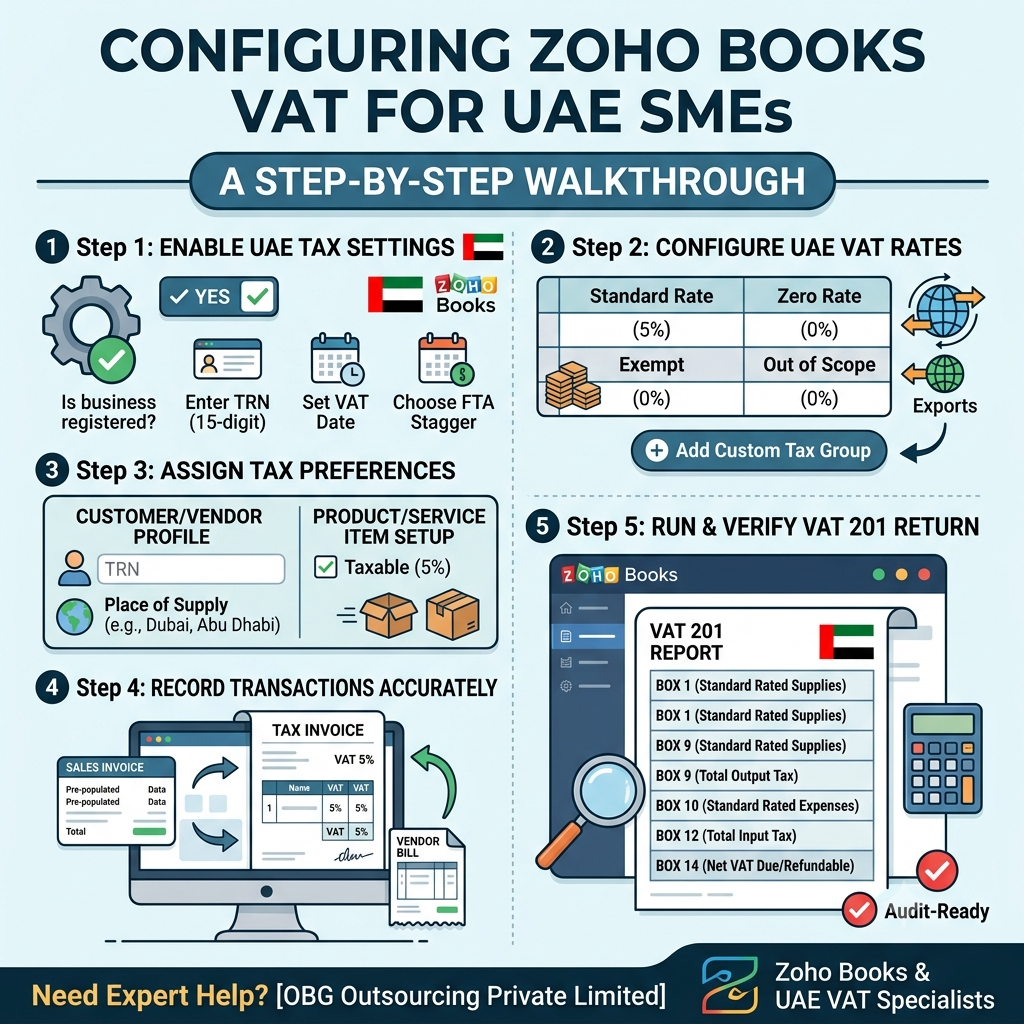
Step 1: Enable UAE Tax Settings in Zoho Books
Before creating an invoice or entering a bill, you must enable the UAE tax settings in Zoho Books either during or after you finish creating your account. Follow these steps to enable the tax settings: Log in to Zoho Books.
Navigate to Settings (gear icon) in the top-right corner $\rightarrow$ Taxes $\rightarrow$ VAT Settings.
Toggle the switch for "Is your business registered for VAT?" to "Yes", enter the 15-digit Tax Registration Number (TRN) issued by the Federal Tax Authority (FTA), fill in the effective date of your VAT registration, select the Federal Tax Authority (FTA) as your tax authority, then choose either a monthly or quarterly VAT filing period that meets the FTA’s requirements. Expert tip from OBG Outsourcing: Double-check the TRN you enter, as an incorrect TRN on an invoice violates FTA regulations and may lead to unnecessary fines.
Step 2: Configure UAE VAT Rates and Tax Codes
Zoho Books comes preloaded with the standard tax rate for the United Arab Emirates (UAE), but you must verify or customize the exclusive code to match your own business operations.
Default UAE tax rates in Zoho Books:
Standard rate 5%: applies to the vast majority of commercial goods and services within the UAE; zero rate 0%: applies to goods exported to regions outside the Gulf Cooperation Council (GCC), international transportation, and medical and education services; exempt rate 0%: applies to local passenger transport, bare residential land, and financial services; outside the scope of taxation 0%: applies to transactions conducted outside the UAE tax territory or non-commercial transactions.
If you need to add a custom tax group or reverse charge tax code: if your enterprise imports goods or services, you must declare the Reverse Charge Mechanism (RCM), and follow the operation path below:
Go to Settings $\rightarrow$ Taxes $\rightarrow$ Tax Rates.
Click to create a new tax type or edit an existing default tax rate. If the transaction involves imported services, you must check the option that marks this tax type as applicable to the reverse charge mechanism.
Step 3: Assign Tax Preferences to Items & Contacts
To enable Zoho Books to automatically calculate tax amounts for purchase and sales transactions, you must first correctly configure the tax preferences for your items, customers, and suppliers.
A. Profile Configuration for Customers and Suppliers
Navigate to Contacts $\rightarrow$ Select a Customer/Vendor $\rightarrow$ Edit.
In the tax information section: Select your tax registration status. If you are already registered, fill in the 15-digit TRN number, select the place of supply, then save the contact record.
B. Product & Service Item Setup
Go to Items $\rightarrow$ Goods/Services. Set the default intra-Gulf Cooperation Council (GCC)/domestic tax preference. The available options are taxable (default rate of 5%), zero-rated, or tax-exempt; save the configuration once complete.
Step 4: Record Transactions Accurately
After completing the basic configuration of Zoho Books, you can easily handle daily tasks such as issuing invoices and recording expenses. In the sales invoice module, you only need to select the corresponding customer and product; the tool will automatically calculate the 5% value-added tax or match the tax-exemption code, and generate a compliant invoice that includes your tax registration number and uses the United Arab Emirates dirham as the currency. When you add a reverse charge label to invoices from overseas suppliers, the tool will automatically record input and output tax, so it will not cause unexpected impacts on your cash flow.
Step 5: Run and Verify Your VAT 201 Return
After the end of a monthly or quarterly tax period, Zoho Books will automatically generate a VAT 201 report that meets
the requirements of the Federal Tax Authority (FTA) of the United Arab Emirates. You can obtain the report by first accessing
the tax category via Reports in the left menu bar, then clicking VAT 201 Report, and finally selecting the corresponding tax period. You also need
to check each item one by one: taxable sales, zero-rated sales, exempt sales, tourist tax refund amounts, reverse charge adjustment amounts, and
the total amounts of output VAT and input VAT, all of which are broken down by emirate.
Box 14 (Net VAT Due/Refundable): Total Output Tax minus Total Input Tax.
When small and medium-sized enterprises (SMEs) in the United Arab Emirates (UAE) use Zoho Books, they commonly make three types of tax-related operational mistakes. First, they incorrectly label the place of supply, which can trigger penalties for violating rules set by the Federal Tax Authority (FTA); to avoid this, they must verify place-of-supply information within the system. Second, they apply for value-added tax (VAT) deductions on restricted expenses in violation of regulations, which requires first checking the compliance requirements specified in VAT 201. Third, they overlook the exchange rate rules issued by the Central Bank of the UAE, which requires updating compliant exchange rates within the tool.
Let OBG Outsourcing Handle Your UAE VAT & Accounting
Setting up a VAT compliance tool adapted for the United Arab Emirates, such as Zoho Books, is the critical first step for enterprises to achieve tax and financial compliance. However, ongoing financial monitoring is still required afterward to ensure accurate bookkeeping and timely tax filing. OBG Outsourcing Private Limited employs certified accountants and tax advisors, and can provide customized Zoho Books setup and data migration services, monthly bookkeeping audits, pre-review of VAT201 forms and FTA filing, as well as tax and financial compliance consulting services for micro, small, and medium-sized enterprises. Enterprises with relevant needs are welcome to contact us to achieve 100% compliance.
_(6).jpg)


1.png)
_(5).jpg)
.jpg)
_(4).jpg)
_(1).jpg)
_(2).jpg)
.png)