 USA
USA UK
UK Australia
 UAE
UAE Canada
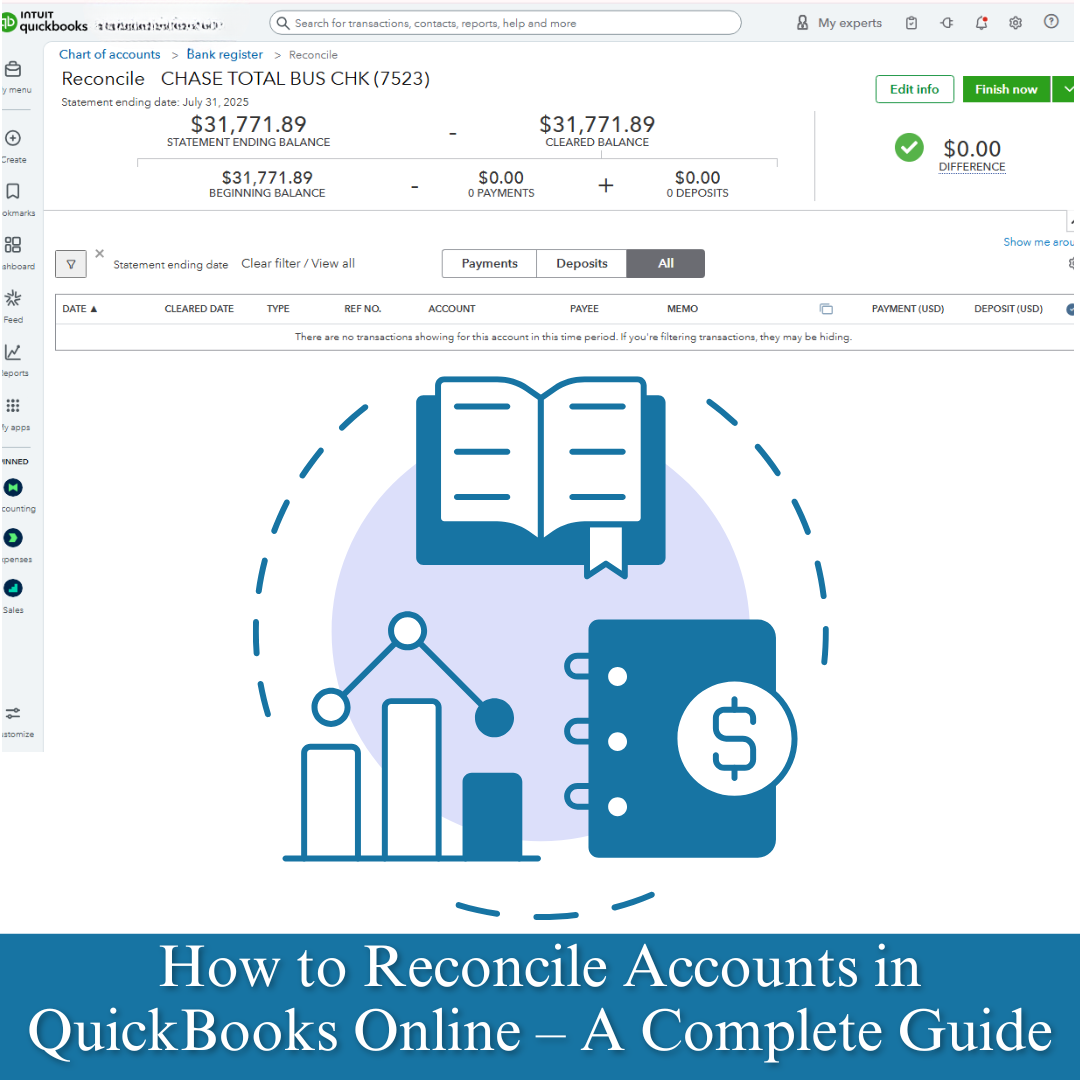
Reconciling accounts is a crucial step in maintaining accurate financial records. In QuickBooks Online (QBO), reconciliation ensures that your bank and credit card statements match the transactions recorded in your books. This process helps detect errors, prevent fraud, and keep your financial data up to date.
At OBG Outsourcing, we help businesses achieve flawless reconciliations by combining accounting expertise with the latest QuickBooks Online tools, giving you peace of mind and financial clarity.
What is Bank Reconciliation in QuickBooks Online ?
Bank reconciliation in QBO is the process of comparing the transactions in your QuickBooks account to those on your bank or credit card statement. If the balances match, your books are accurate. If they don’t, the difference needs to be investigated and corrected.
Why Reconciliation Matters
Error Detection: Identify missing, duplicated, or incorrect transactions.
Fraud Prevention: Catch unauthorized transactions early.
Cash Flow Accuracy: Ensure your real-time bank balance matches your records.
Tax Compliance: Maintain accurate records for tax preparation and audits.
Step-by-Step: How to Reconcile Accounts in QBO or How to reconcile Accounts Receivable in QuickBooks online
Prepare Your Bank Statement
Have your bank or credit card statement ready with the opening and closing balances.
Go to the Reconcile Page
From the QBO dashboard, click Settings (?) ? Reconcile.
Select the account you want to reconcile.
Enter Statement Information
Input the statement ending balance and ending date from your bank statement.
Match Transactions
Compare each transaction in QBO to your statement.
Check the box next to each matching transaction.
Review Differences
If there’s a difference, check for missing entries, wrong dates, or amounts.
Finalize the Reconciliation
Once the difference is $0.00, click Finish Now.
Common Reconciliation Issues
Duplicate transactions from bank feeds.
Missed entries such as bank fees or interest.
Wrong transaction dates that fall outside the reconciliation period.
Case Study – OBG Outsourcing Reconciliation Success
A retail business came to OBG Outsourcing with a 6-month backlog of unreconciled accounts. Transactions were mismatched, vendor payments were missing, and the business faced tax filing delays.
Our Solution:
Used QuickBooks Online bank feed tools for accurate matching.
Corrected entries and removed duplicates.
Completed reconciliation for all accounts within two weeks.
Clean, accurate books ready for tax filing.
Real-time financial insights for better cash flow management.
Why Choose OBG Outsourcing for QuickBooks Online Reconciliation
Expert Accountants: Skilled in QBO bank and credit card reconciliations.
Error-Free Reporting: 100% accuracy in matching transactions.
Time-Saving: We handle reconciliations so you can focus on business growth.
Tax-Ready Books: Ensuring your accounts are always audit-ready.
Final Word:
Reconciling accounts in QuickBooks Online is not just a bookkeeping task—it’s a financial safeguard. By outsourcing this process to OBG Outsourcing, you ensure error-free reconciliations, compliance, and better financial control.
_(6).jpg)


1.png)
_(5).jpg)
.jpg)
_(4).jpg)
_(1).jpg)
_(2).jpg)
.png)